August 2024 Release Notes
e-Builder Mobile App: Update your e-Builder mobile app to get the latest features.

August 21 - Web
 What's New
Schedule - Change to Task Duration Unit of Measure (Starting on August 29, 2024)
Currently, the parent task duration units can be displayed in days, weeks, or months. This has caused an issue where the Project Start and Finish Dates could become out of sync with the Schedule Start and Finish dates.
To address this issue, the task duration on parent tasks will always be displayed in days. This upcoming change will start on August 29, 2024.
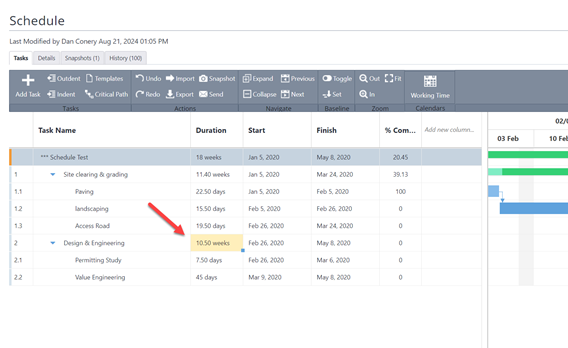
Current Parent Task Duration with Different Units of Measure
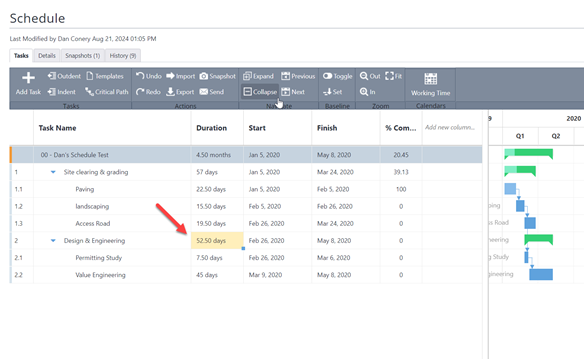
Parent Task Duration Unit of Measure in Days Only (Starting on August 29, 2024)
August 16 - Web
What's New
Geographic Information System (GIS) in Trimble Unity Construct (e-Builder)
A geographic information system (GIS) allows you to connect data to a map, integrating location data with descriptive information. In Trimble Unity Construct, mapping data, project and process information will be included.
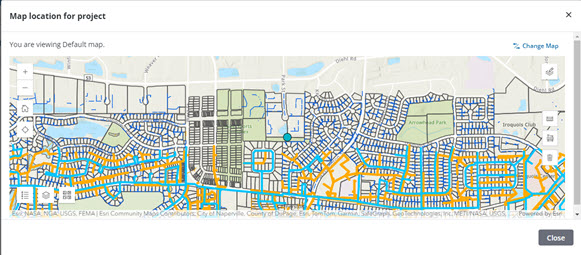
Example of a GIS Map
Using Geographic Information Systems (GIS) for projects provides users with the following benefits:
-
Enhanced visualization and decision making:
- GIS helps users understand patterns, relationships, and gives geographic context.
- Easily get geographic information in and around a project area.
-
Project information transparency:
- Share maps with the public and internal teams for CIP projects and provide increased transparency about project information.
-
Streamlined workflows and integrations:
- Adding a spatial piece improves integration.
- Easy access to create features in Trimble GIS data integrations.
Configure GIS
There are three parts to configuring GIS for Trimble Unity Construct:
- Add Web Maps: Connect and display your ArcGIS web maps to projects and processes by role.
- Add Project and Process Locations: Pinpoint project and process locations on the map so that office and mobile workers can identify the work locations easily.
- Use Map Tools: Use map tools like measurement tools, editor, navigation, base map, layer list to perform actions like specifying the appearance of the map, editing features and more.
Add Web Maps
A web map is an interactive display of geographic information that contains a base map and a set of data layers or assets. Administrators can add, view, edit and delete one or more web maps for an account using the Map Location page (Setup> Administration Tools> Map Location).
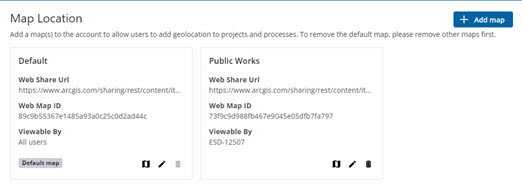
Map Location Page with web maps added to an account
Multiple web maps can be used based on roles. The default map will be available to all users.
To remove the default map, you must remove all other maps first. If more than one map is added to the account, the Delete button will not be available on the default map.
Add Project Location
After web maps have been configured for the account, Project Administrators can add locations to new and existing projects. This project location and its XYZ coordinates can be viewed by users with access to the projects.
The Map Location can be set to a different location than the project address.
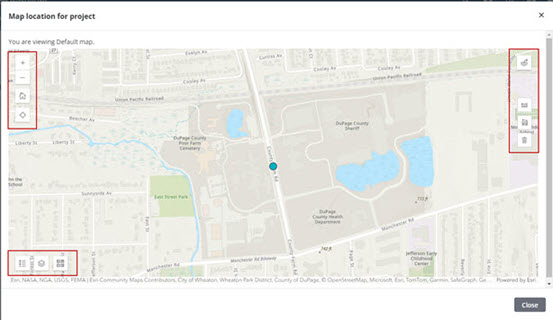
Map with Map Tools Displaying the Project Location
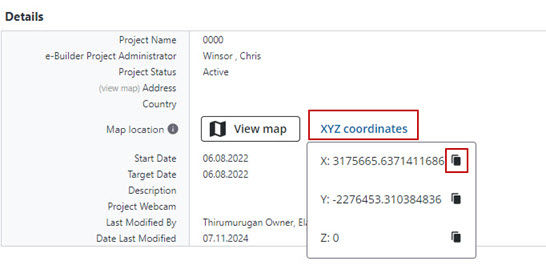
Project Location - XYZ coordinates
Add Process Location
Administrators can geo-enable processes to use web maps (Setup> Administration Tools> Processes> Manage Processes> Add/Edit Process).
Locations can then be added to each geo-enabled process on the Start Process page (Processes> Project Processes> Start process> Select a process) and viewed or modified on the Process instance details page (Processes> Click the name of the process instance).
Permissions to view or edit web maps can be set on the Page Layouts tab of the process.
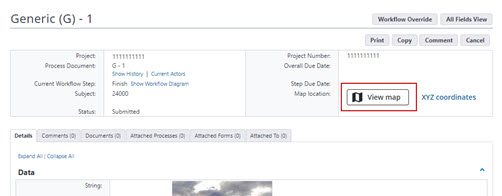
Process Instance with Process Location - View map button
Use Map Tools
Map tools include the default map view, area and distance measurement tools, feature editor, base map gallery, legend and the layer list.
These tools can be used while adding the web maps, and while adding or updating the project and process locations.
GIS Map Tools
Adobe Acrobat Sign - Recipient Placeholders
While preparing documents for eSignature using Adobe Acrobat Sign, you can now add placeholders recipients when the exact signer is unknown.
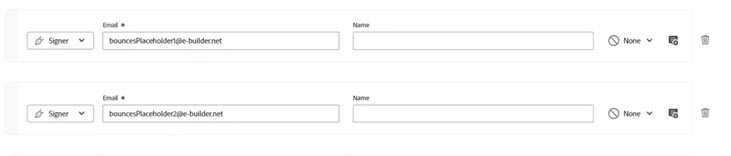
Adobe Acrobat Sign - Recipient placeholders
The guidelines to tagging Documents with Placeholder Recipient fields for eSignature are as follows:
- Review all “Recipient” names to determine which recipients are needed for the specific Process instance.
- The pre-loaded Recipients reflect every Trimble Unity Construct user that is on a process step that requires e-Signature. Ensure that you do not edit or delete their “bounces” email addresses.
- If there’s an eSignature step where the specific recipient is unknown, use the appropriate Placeholder email for their step: “bouncesPlaceholder1”, ”bouncesPlaceholder2”, and so on.
- Consult with your Admin for guidance on exactly which placeholder number (1,2,3, etc.) correlates to a particular eSignature step.
- Locate the e-Builder users on that same step and delete them, leaving only the specific “bouncesPlaceholderN” emails for steps with unknown recipients.
- Do not edit the remaining “bouncesPlaceholder” emails.
- Trimble highly recommends that you add a name for each of the remaining Placeholder recipients to make it easier when tagging their signature location on documents.
- Click Preview & add fields when done.
Resolved Cases
The following issues have been resolved:
Cost
- Resolved an issue for Dynamic Budget Line Item processes to allow Dynamic columns to be updated when the Status of a Process Instance is updated to "Approved" on the Finish step. (Case# 575155)
eSignature
- The link to the instructions on preparing document(s) for e-Signature using Adobe Sign now works as expected without any issues. (Case# 577316)
- Resolved an issue with Adobe e-Signature on the document preparation step. Now, the "Continue" button will be enabled if the action is "page Prepare document(s) for eSignature" and users have already signed the Adobe agreement. (Case# 577803)
Forms
- Previously, there was an error trying to open a form if the account has the ProjectNumberCustomField preference and the form instance does not have the corresponding custom field value set. Now, the user will be able to open the form instance without errors. (Case# 577381)
- Resolved an issue to allow a copied Form instance to open correctly. (Case# 578011)
Processes/ Workflow
- Resolved an issue with Master Commitment processes, that will allow a user in the project-level role associated with a workflow step to appear in the current actors list. (Case# 546015)
Reports
- When exporting a Process Routing History report, the system was prematurely removing the time from date/ time columns if there was at least one row with 12 AM time. This issue has been resolved. Now, the system will retain the date/ time format for the entire column if at least one row contains a time. (Case# 571416)
Users
- When user X (who has been previously granted access delegation by user Z) is subsequently removed from Trimble Unity Construct, user X is no longer displayed in the user Z's username drop-down menu as a potential username switch. (Case# 574976)